
How to create a freelance invoice: a worked ₹1,200 example
By Invoiceo · Published
To create a freelance invoice, identify who is billing whom, describe the work, enter the quantity and agreed rate, choose the currency and dates, then check the finished PDF. This guide walks through an original example you can reproduce in Invoiceo without an account.
A freelance invoice example you can check
Imagine Blue Kite Design has delivered three design sessions for River Studio at an agreed rate of ₹400 per session. Both businesses are fictional. The sample uses the same details and PDF as our guest invoice walkthrough.
- From / bill to
- Blue Kite Design / River Studio
- Invoice number
- DEMO-001
- Invoice date / due date
- 14 November 2026 / 28 November 2026
- Currency
- INR
- Service
- Design session
3 sessions × ₹400 per session
₹1,200
The sample has no discount, shipping or tax added, and no payment recorded. Its balance due is also ₹1,200.
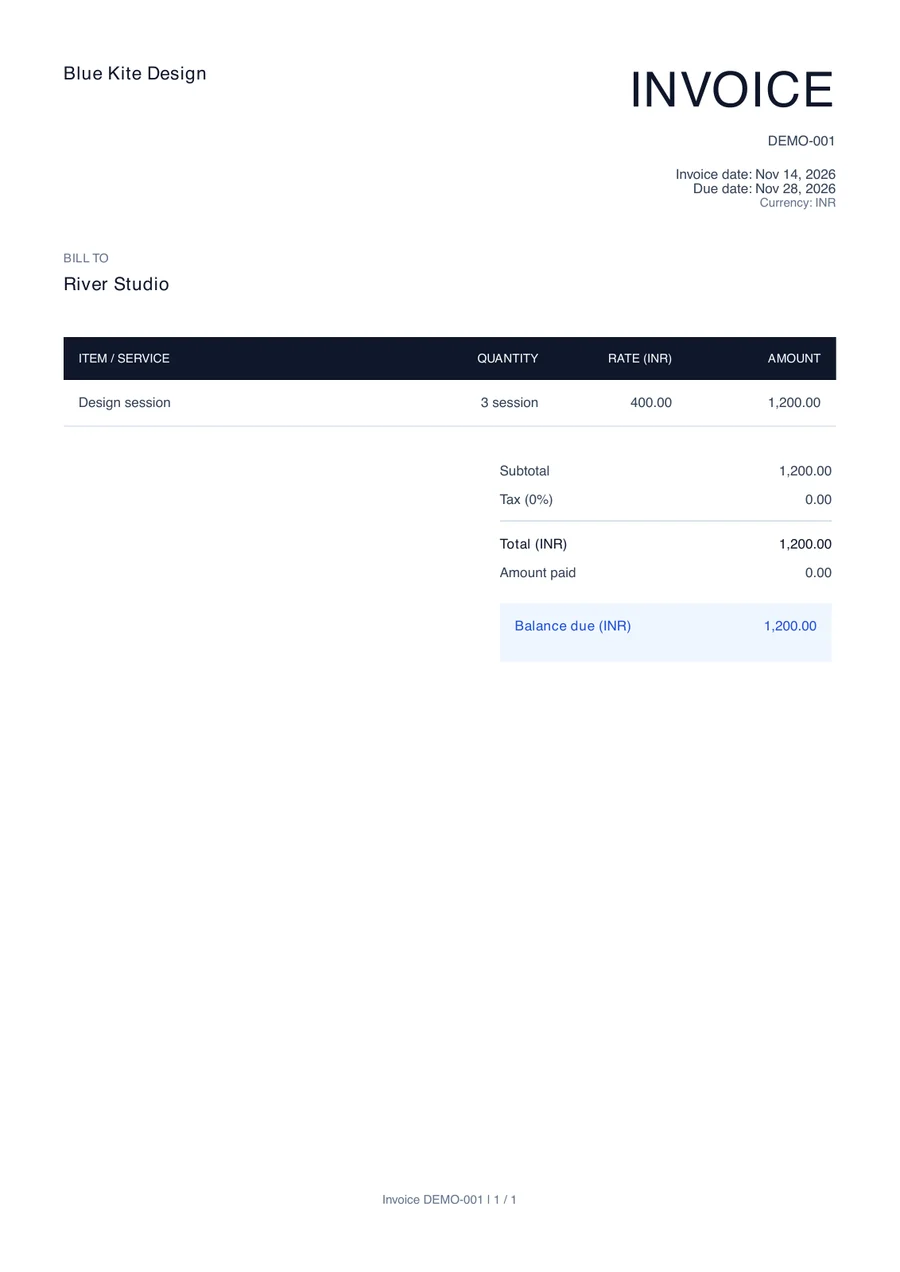
The zero-tax example keeps the arithmetic easy to follow. It does not tell you which tax applies to your work. Invoiceo uses the tax rate you enter; confirm the applicable tax and required invoice details for your business before issuing a real document.
What to enter in each invoice field
Open the free invoice creator and select Invoice. Guest PDF downloads do not require signup. Use the example to practice, then replace the fictional values with details agreed with your client.
Identify your business and client
Enter the name you bill under and the client's billing name. Check their address and any reference they need before you finalize the PDF. In this sample, Blue Kite Design is the sender and River Studio is the customer.
Choose a useful invoice number
Use a reference you can find again in your own records. DEMO-001 identifies this example. For real work, follow your business's numbering requirements and avoid accidentally reusing a reference for a different invoice.
Set the dates and currency
The sample's invoice date is 14 November and its due date is 28 November 2026. These are example dates, not a recommended payment term. Use the due date you agreed with the client. Choose INR for this example; selecting a currency does not convert an agreed price from another currency.
Describe a service the client can recognize
Add a Service line with description “Design session,” unit “session,” quantity 3 and rate 400. A real description can name the project, milestone or period so the client can match it to the work. For a fixed-price project, one project at the agreed project rate may describe the arrangement better than invented hours.
Check the arithmetic and adjustments
Quantity × rate gives the line amount: 3 × ₹400 = ₹1,200. Check the currency and decimal places as well as the number. Only enter discounts, shipping or tax that apply to the actual transaction. Check the final total again after any adjustment.
Add relevant notes and payment terms
Use notes for information the client needs to identify or process the bill, such as a project reference. Keep payment terms consistent with your agreement. The example's payment amount is zero because it demonstrates an unpaid invoice.
Review the PDF before sending it
Use the review step, download the PDF and open the actual file. A correct-looking form is only the starting point; check what the client will receive.
- The sender and customer names identify the right parties.
- The description matches the delivered work or agreed billing milestone.
- The invoice number, currency and dates are correct.
- Quantity, rate, adjustments, total and balance due agree with your records.
- The PDF is readable and includes the references your client needs.
Downloading a PDF saves a document to your device. It does not email your client or collect payment. Send the reviewed file through the channel you agreed with the client, and retain a copy.
Keep a copy for your next client job
When browser storage is available, Invoiceo can restore a guest draft in the same browser. That draft is useful for continuing your work, but clearing browser data or using another device will not preserve it. Keep the downloaded PDF before clearing your draft.
For ongoing billing, an Invoiceo account lets you manage saved invoices and reuse business and customer details. The guest creator is a useful first step when you only need to prepare a PDF.
Common questions
Can I create an invoice without signing up?
Yes. Invoiceo's guest creator lets you enter details, review totals and download a free PDF without an account.
Is the sample a blank template?
It is a completed fictional example. Use it as a reference, then enter your own details in the creator to generate a new invoice.
Does downloading the invoice mark it paid?
No. A PDF download does not establish that payment was received. Check payment against your own records.
Still agreeing on the work and price? Read our quotation vs invoice comparison with paired PDF examples.
Billing a design project? See the graphic design invoice example with agreed revisions.